
Review appeals in the cabinet
An appeal is a transaction hash someone asked Cryptunnel to match with a failed payment - the buyer from the failed screen, your team from the cabinet or your backend through the API. The Appeals page of the cabinet lists them all and lets you decide the ones that wait for a decision.
The list
Open Appeals in the menu (1). The cards on top count the appeals by outcome; Waiting (2) is the number that needs your decision. A waiting appeal has the Decide button (3).
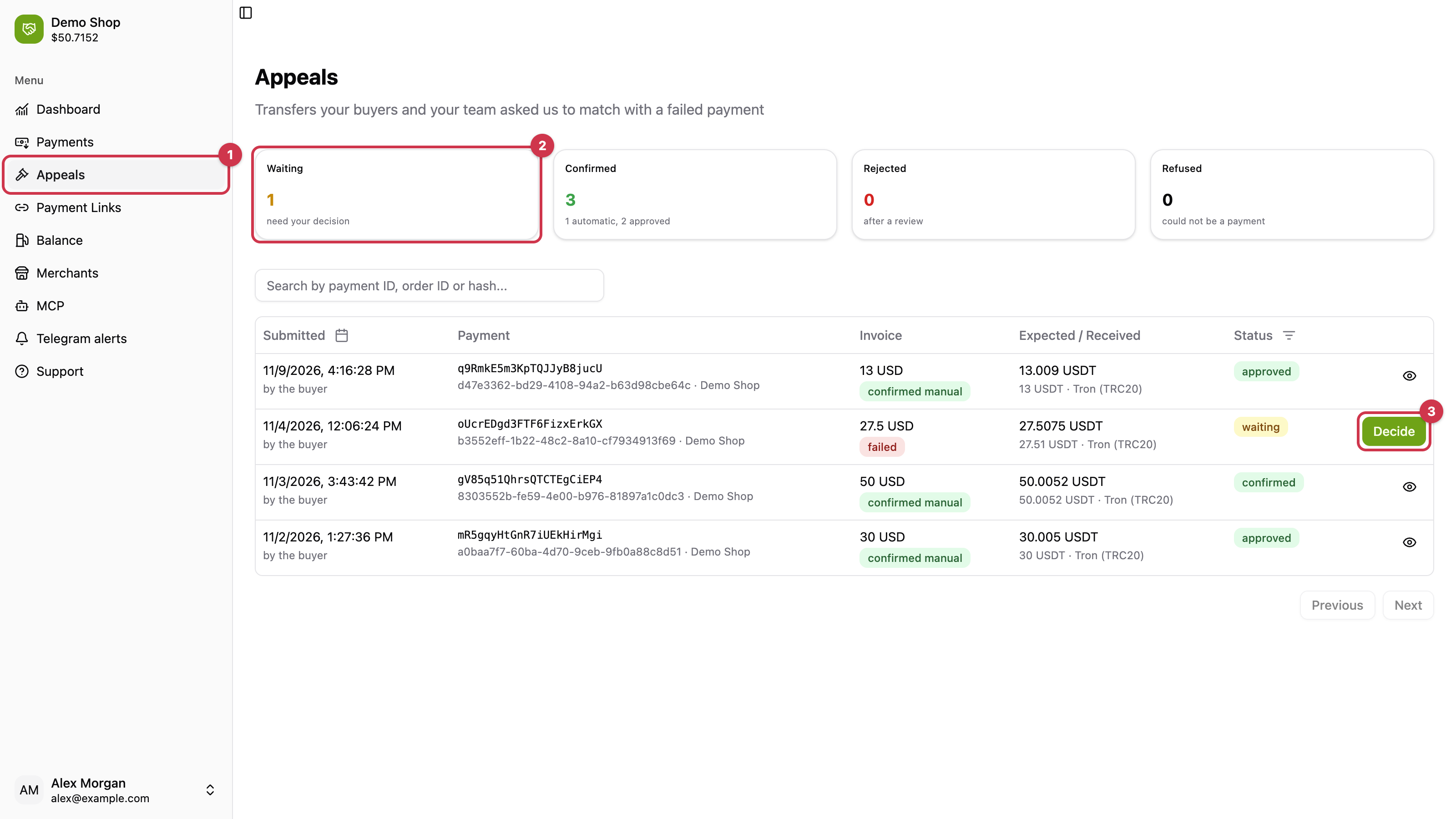
| Card | Meaning |
|---|---|
| Waiting | The transfer reached your wallet but does not match the payment - decide it. |
| Confirmed | Confirmed automatically on an exact transfer, or approved by you or support. |
| Rejected | Rejected after a review; the buyer saw the reason. |
| Refused | The transaction could not be this payment: not found, another recipient, failed on chain, sent before the payment, or a hash already used. |
Each row shows when and by whom the appeal was submitted, the payment id with your order id, the invoice and the payment status, the expected and the received amount, and the appeal status.
Find an appeal
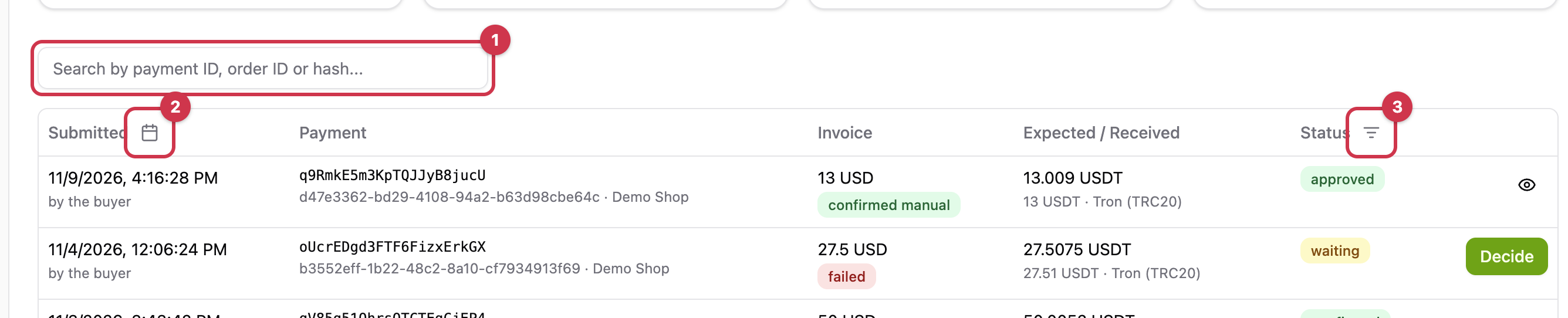
Search by payment id, order id or hash (1), filter by the submission date (2) or by status (3).
Decide
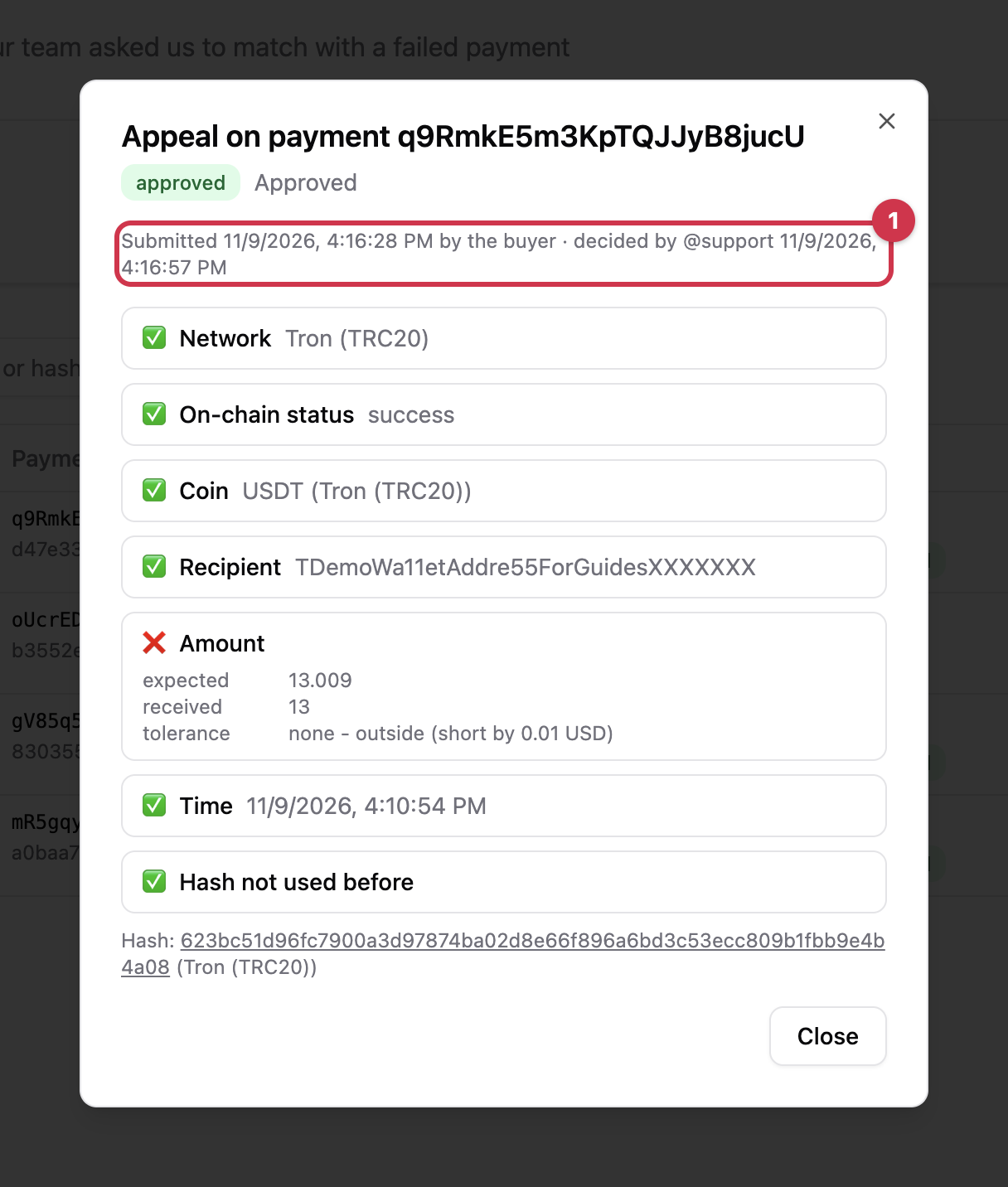
Press Decide on a waiting appeal. The dialog lists every check of the transfer against the payment - network, on-chain status, coin, recipient, amount, time, and that the hash was not used before. A failed check (1) shows what was expected and what arrived; under the amount check you also see the tolerance you set on the merchant.
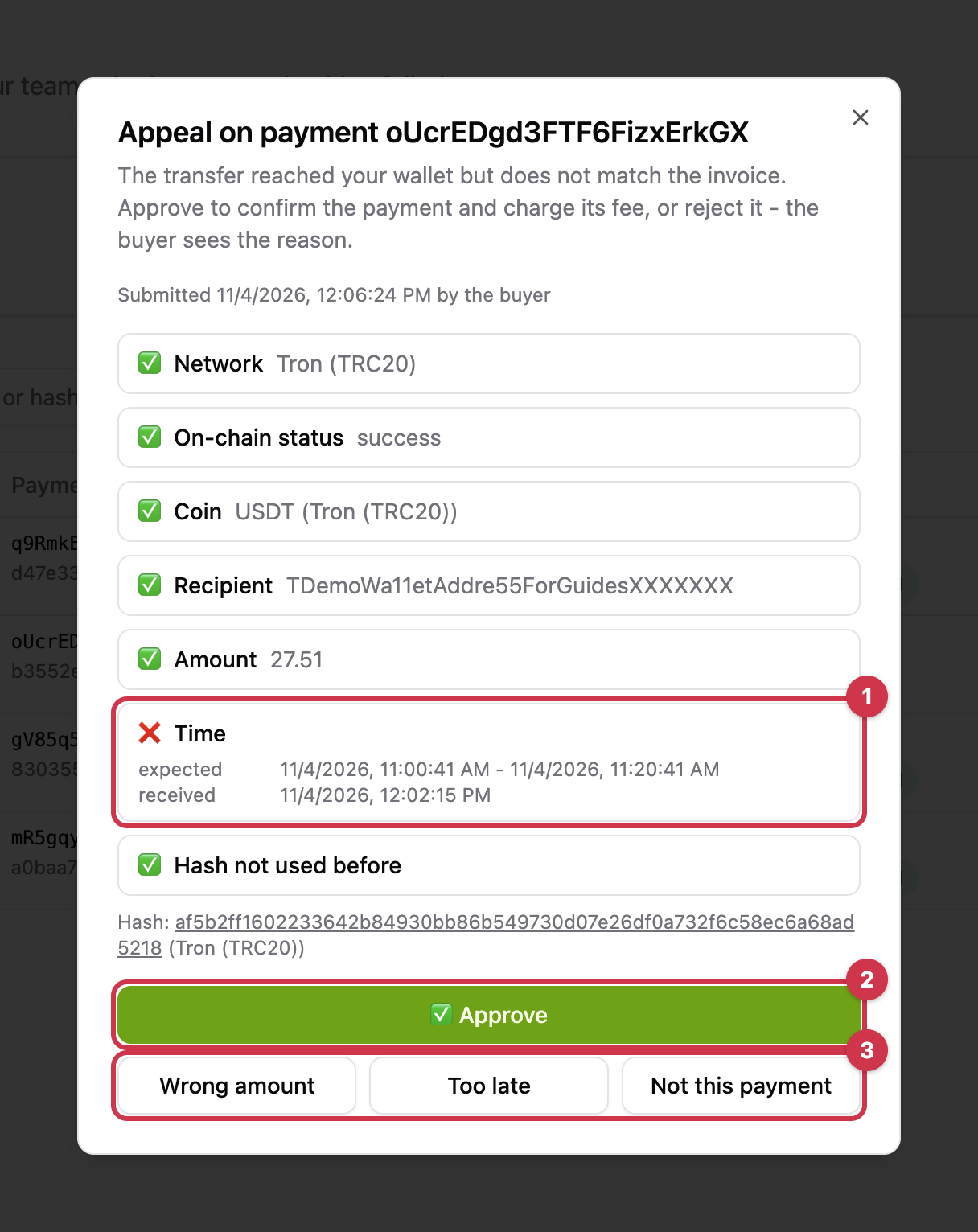
- Approve (2) - the payment becomes
confirmed_manualwith the transfer as it arrived, your webhook fires, and the fee of the full invoice is charged to your balance. - Wrong amount, Too late, Not this payment (3) - the appeal is rejected and the buyer sees the reason on the failed screen; the payment stays
failed.
The first decision wins: if support or a colleague in Telegram pressed first, the cabinet tells you the appeal is already decided.
Submit a hash yourself
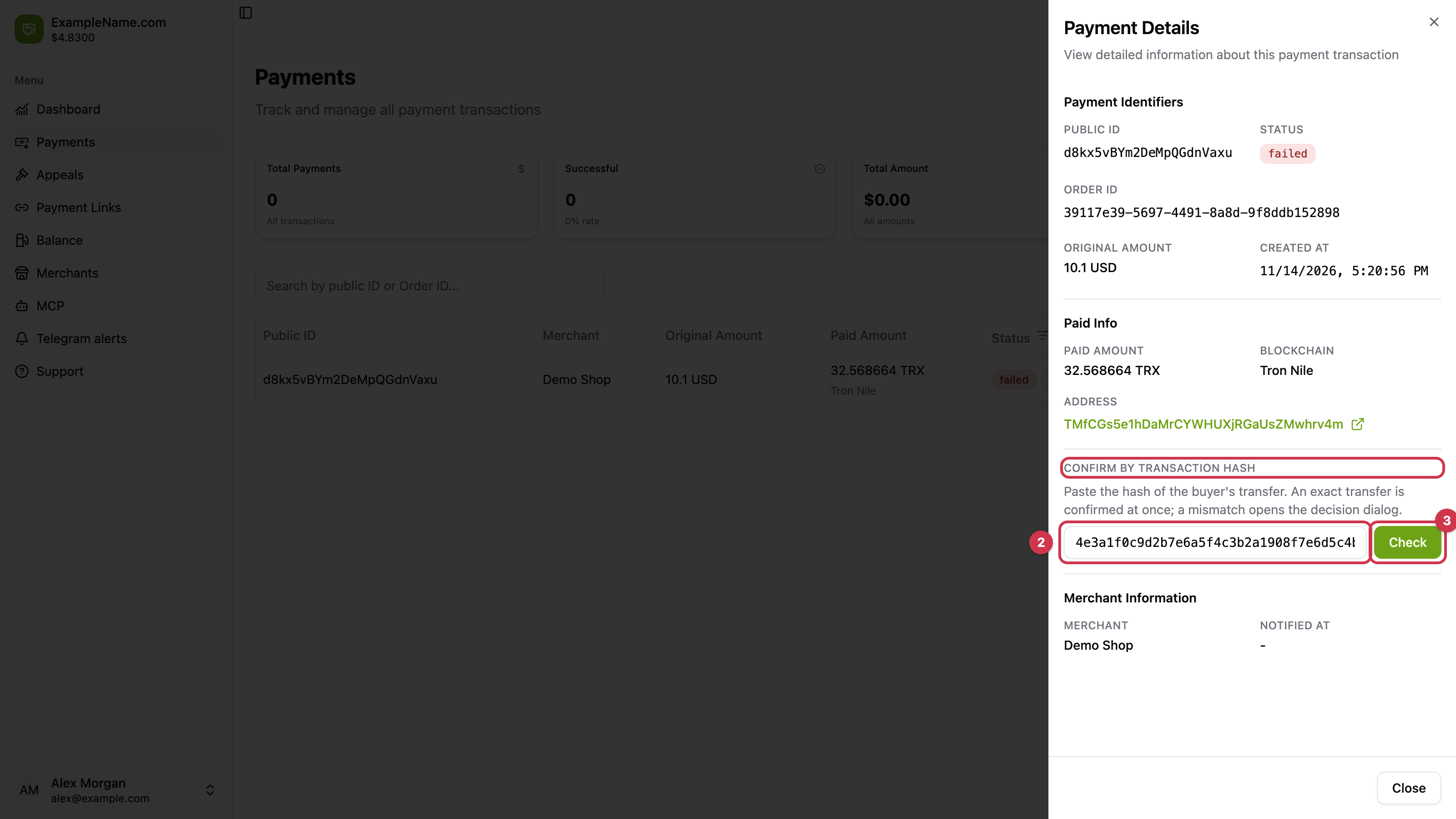
When the buyer sends the hash to your support instead of the failed screen, check it from the cabinet. On the Payments page open the failed payment with the edit icon (1).
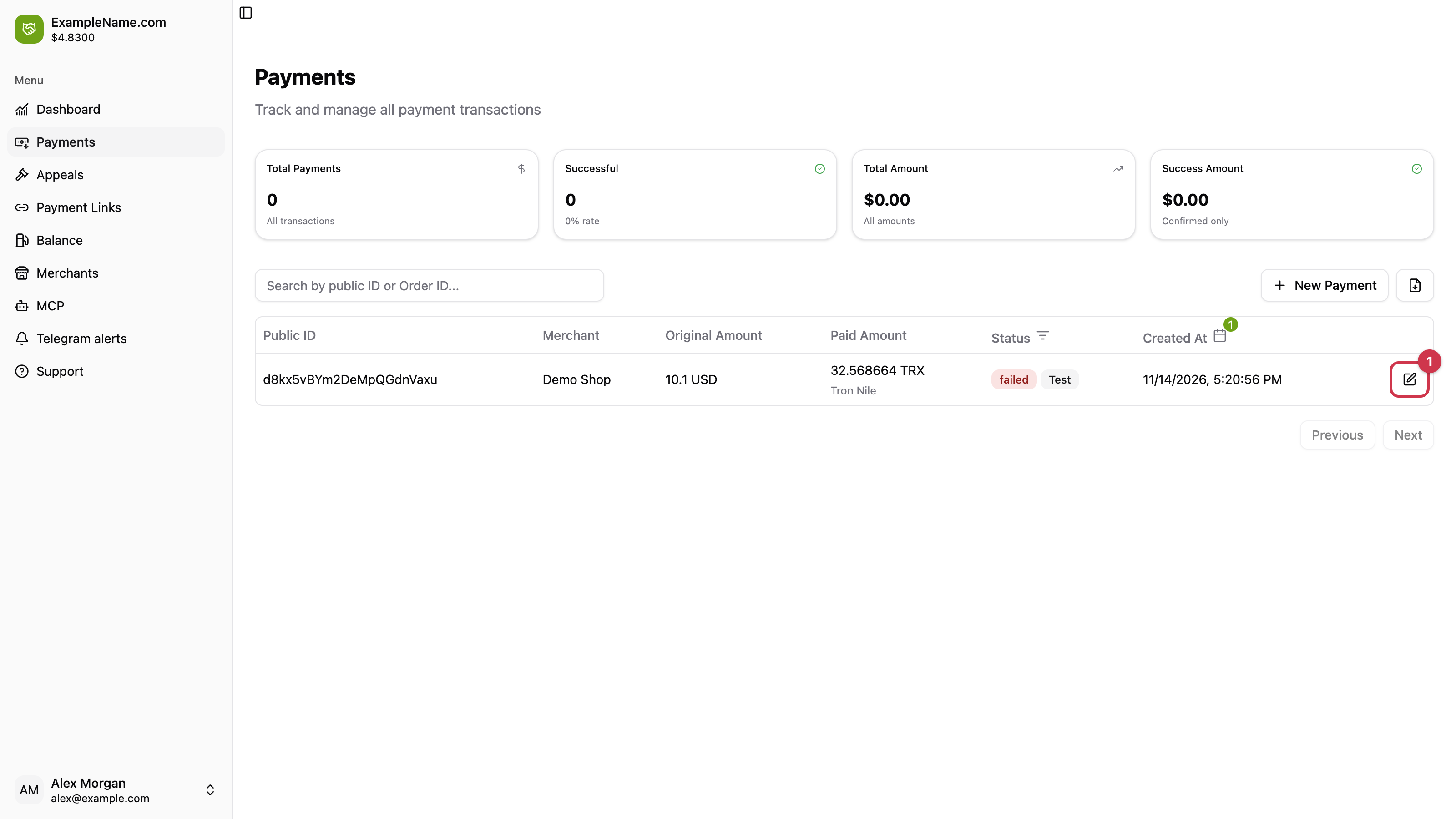
Under Confirm by transaction hash paste the hash (2) and press Check (3). An exact transfer confirms the payment at once; a mismatch opens the same decision dialog as above, and a hash that cannot be this payment is refused with the reason under the field. Only failed payments have this block.
Decided appeals
The eye icon opens any other appeal read-only: its outcome, the checks, and who decided it and when (1).
Updated 6 days ago